
Roblox is home to some of the most addictive grinding games, idle tycoons, and simulators on the internet. But let’s be honest—clicking your mouse thousands of times to level up or constantly tapping a key just to avoid getting kicked for being Away From Keyboard (AFK) can get old fast. If you want to save your index finger and dominate your favorite games, an auto clicker is your ultimate secret weapon.
Today, we are diving into how to set up ExoPanda, a powerhouse tool designed to take complete control of your mouse actions with zero hassle. It is completely free, lightweight, and perfect for keeping you active in-game while you step away.
What Makes ExoPanda the Best AutoClicker for Roblox?
ExoPanda stands out because it operates as a multi-functional hub. Unlike traditional, bare-bones auto clickers that only offer basic interval settings, ExoPanda features an integrated app ecosystem. It runs seamlessly across different operating systems with optimized background processing, meaning it bypasses the standard lag or memory leaks common in older clicking software. Because it mimics organic hardware inputs rather than injecting code into the Roblox client, it minimizes the risk of triggering basic in-game anti-cheat detection, making it an incredibly reliable choice for long-term, overnight idling.
Step-by-Step: How to Download and Launch ExoPanda
Ready to automate your gameplay? Follow these quick steps to get ExoPanda up and running on your system:
1. Download the Software
Head over to the official download page and select the version that matches your computer’s Operating System (OS).
2. Run the Installation
Open the downloaded file and follow the standard on-screen setup instructions to install the program. Once finished, launch the ExoPanda app from your desktop or applications menu.
3. Locate the Auto Clicker Tool
Inside the clean ExoPanda dashboard, you have two easy ways to find the tool:
- Look at the Quick Info section on the main dashboard to find the auto clicker shortcut.
- Alternatively, navigate to the Apps section in the menu and launch the AutoClicker from there.
How to Set Up and Trigger Your Auto Clicker In-Game
Once the auto clicker module is open, customizing it for Roblox takes just a few seconds:
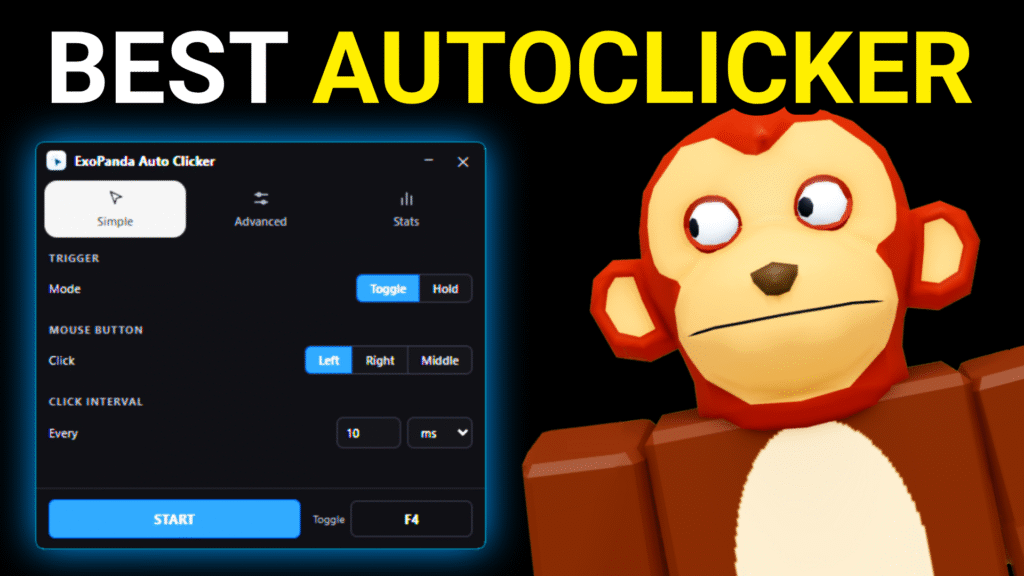
[ Set Millisecond Intervals ] ➔ [ Position Your Mouse ] ➔ [ Press F4 to Start / Stop ]
- Adjust the Speed: Choose your click intervals in milliseconds. A lower number means faster clicking (e.g., 100ms is 10 clicks per second).
- Position Your Cursor: Open your Roblox game of choice, place your mouse cursor exactly where you need the actions to happen, and make sure the game window is active.
- Activate (F4): Press F4 on your keyboard. You will instantly see the tool clicking at blazing-fast speeds.
- Deactivate (F4): When you are done grinding or need to take back control of your mouse, simply press F4 again to stop it.
Now you can comfortably walk away, safely avoid the 20-minute Roblox idle kick, and watch your stats skyrocket!
Frequently Asked Questions (FAQ)
Can using an auto clicker get my Roblox account banned? Using a macro or auto clicker to click on your screen does not violate Roblox’s global Terms of Service, as it doesn’t modify game files. However, individual games with strict competitive leaderboards may have their own anti-cheat scripts that track automated behavior. To stay safe, avoid setting your click intervals to an impossibly fast 1ms, which can flag automated behavior.
Will ExoPanda slow down my PC or cause game lag? No. ExoPanda is engineered to have a minimal CPU and RAM footprint. Unlike heavy software, it runs quietly in the background without hogging system resources, ensuring your Roblox framerate (FPS) stays smooth even during intense simulator rounds.
Can I use ExoPanda to hold down the mouse button instead of rapid clicking? Yes. While the default mode is set to rapid intervals, the advanced settings within the app allow you to toggle between “Click” (repeatedly tapping) and “Hold” (keeping the mouse button compressed). This is incredibly useful for games that require you to hold down a tool or weapon to charge an attack.
Does this tool work if I minimize the Roblox window? Standard auto clickers require the target window to be active and on top because they simulate physical mouse movements across your desktop screen coordinates. If you minimize Roblox or open a browser tab over it, the clicker will click on whatever new window is in that exact spatial position. For overnight grinding, leave Roblox open and simply turn off your monitor.
Is it possible to change the start/stop hotkey from F4 to something else? Absolutely. If F4 conflicts with an existing keybind in your game (or your computer’s function keys control volume/brightness), you can click directly into the hotkey box inside ExoPanda’s settings and press any preferred key (like F1, F6, or X) to rebind the trigger.