
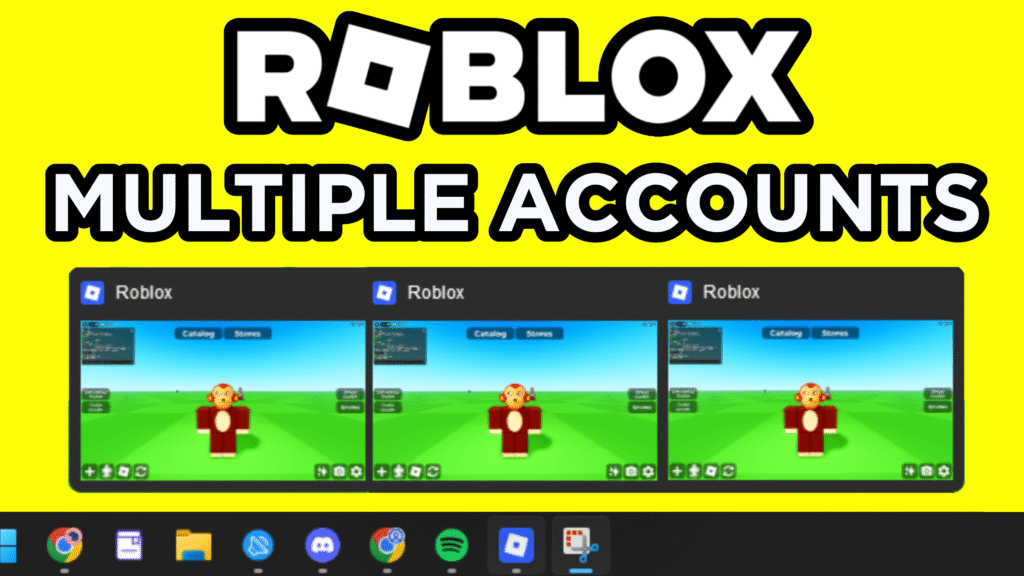
Many Roblox players manage more than one account. Some people use alternate accounts for trading, testing games, managing communities, or simply separating different gameplay experiences. However, running multiple Roblox accounts on the same device can cause issues such as constant captchas, sudden disconnects, or even account restrictions.
This guide explains how to run multiple Roblox accounts at the same time in 2026 using modern tools and smart practices. The method focuses on separating each account so that platforms treat them as completely different devices and users.
By following the steps below, you can manage several Roblox accounts smoothly while reducing the risk of login problems or suspicious activity warnings.
Why Running Multiple Roblox Accounts Can Cause Problems
Roblox systems monitor login behavior and device activity. When several accounts log in from the same device, browser, and IP address, the platform can detect the connection between them.
This may lead to:
- Frequent captchas during login
- Random disconnections
- Login verification requests
- Temporary account restrictions
- In rare cases, account bans
The reason is simple: multiple accounts sharing the same digital fingerprint can look suspicious to automated systems.
To avoid these issues, every account needs to appear as if it’s coming from a different device, location, and browser environment.
The Key Concept: Separate Digital Environments
To safely run multiple Roblox accounts, each account must operate in its own isolated environment. This includes:
- A unique browser profile
- Separate cookies and session data
- A different browser fingerprint
- A different IP address
When these elements are separated correctly, platforms like Roblox treat each login as a completely independent user.
This is where specialized tools and browser profile managers become useful.
So, let’s use GoLogin and go from there!

Step 1: Create a Browser Profile Manager
The first step is using a browser profile manager that allows you to create isolated browser environments.
Each profile acts like a separate computer with its own:
- browser cookies
- cache
- device fingerprint
- login sessions
This means every Roblox account will operate inside its own profile instead of sharing data with others.
When creating profiles, always give them clear names. The best practice is to name each profile using the Roblox username that belongs to it.
Avoid vague names like:
- Account1
- ProfileA
- TestUser
Once you begin managing several accounts, these names quickly become confusing.
Step 2: Match Your Operating System Settings
While configuring browser profiles, you’ll usually see settings that allow you to choose an operating system environment.
Many beginners think randomizing everything increases privacy. In reality, consistency is more important than randomness.
If you are using:
- Windows → set the profile OS to Windows
- Mac → set the profile OS to Mac
If the profile reports a completely different system than the real device, it can create inconsistencies that automated systems may notice.
Keeping the environment consistent helps profiles appear more natural.
Step 3: Use Proxies to Separate IP Addresses
One of the most important steps is assigning a unique proxy to each account.
A proxy acts as a middle server between your device and the internet. Instead of a website seeing your real home IP address, it sees the proxy’s IP address.
This is important because:
- Multiple accounts from one IP address look suspicious
- Separate IPs make accounts appear unrelated
Proxy Best Practices
Follow these guidelines:
- Use one proxy per account
- Avoid sharing proxies between profiles
- Choose a location that matches normal account behavior
For example, if your account normally plays on North American servers, selecting a proxy in the United States or Canada makes sense.
Choosing a random location far from the usual region may trigger additional verification steps.
Before using a proxy, always test it to confirm that it works properly. A broken proxy can cause the account to connect using your real IP address.
Step 4: Install Any Necessary Browser Extensions
If you use Roblox browser tools such as trading extensions or enhancement tools, install them inside the specific browser profile rather than your main browser.
Each profile should only contain the extensions needed for that account.
If you don’t use any extensions, you can skip this step entirely.
Step 5: Log Into Roblox Safely
After creating the profile and configuring the proxy, launch the profile and visit Roblox.
During the first login, take your time and avoid rushing through the process.
Sometimes the first login attempt from a new IP address can trigger captchas or additional verification. If this happens, you can try logging in normally and allowing the session cookies to establish before continuing with gameplay.
Once the account is successfully logged in, the session usually becomes more stable.
Step 6: Clone Profiles for Additional Accounts
Instead of building every browser profile from scratch, a faster approach is cloning an existing profile.
Cloning duplicates:
- fingerprint configuration
- browser settings
- operating system environment
After cloning, simply:
- Rename the profile with the new account’s username
- Replace the proxy with a different one
- Log into the corresponding Roblox account
This method ensures the environments look similar but still operate independently.
Step 7: Enable Multi-Instance Roblox Launching
By default, Roblox is designed to run only one game client at a time on a computer.
If you try launching another game while one is already running, the client often blocks the second session.
To solve this, many players use a modified launcher that supports multi-instance launching.
These launchers allow several Roblox clients to run simultaneously on the same system.
After installing the launcher, look for the setting called multi-instance launching and enable it. This feature is what allows multiple game sessions to run at once.
Running Multiple Roblox Accounts Simultaneously
Once everything is configured, the workflow becomes simple.
- Open the first browser profile
- Log into the first Roblox account
- Start a game
- Open the second profile
- Log into another account
- Launch the second game client
If everything is set up correctly, both clients will run at the same time with different accounts.
Each client will be associated with:
- a unique IP address
- a different browser fingerprint
- a separate login session
Hardware Limitations to Consider
While the setup allows multiple accounts, your computer still has hardware limits.
Running several Roblox clients increases usage of:
- RAM
- CPU
- GPU
If your system begins to lag or slow down, it is usually because the hardware is reaching its limits.
To improve performance:
- close unnecessary applications
- lower in-game graphics settings
- upgrade system memory if possible
Behavior Matters More Than Tools
Even with perfect technical setup, account behavior still plays a major role.
Many accounts get flagged not because of the software used, but because of unnatural patterns of activity.
Here are some important behavioral rules.
Avoid Rapid Login Switching
Logging in and out of many accounts within minutes creates a suspicious pattern.
Instead:
- space out login sessions
- act like a normal user
- allow time between account switches
Keep Account Locations Consistent
If an account logs in from one country one day and another country the next day, the system may detect unusual geographic movement.
Choose a location for each account and keep it consistent.
Stability looks natural. Sudden location changes do not.
Do Not Mix Browsers
Never log into the same account from both:
- your normal browser
- the isolated profile environment
Doing this links both environments together through session data and fingerprints.
Each account should stay exclusively within its assigned browser profile.
Avoid Public Free Proxies
Many free proxies are already heavily used and flagged by websites.
These proxies often cause:
- failed connections
- security checks
- blocked logins
Using reliable proxy services usually provides a much more stable experience.
Pay Attention to Captchas
If an account starts receiving repeated captchas, it usually means something is wrong.
Possible causes include:
- poor proxy quality
- location mismatch
- browser fingerprint issues
Instead of repeatedly solving captchas, stop and identify the cause before continuing.
Best Practices for Long-Term Account Safety
To keep accounts stable over time, follow these habits:
- Maintain consistent environments
- Use separate proxies for each account
- Avoid sudden configuration changes
- Log in naturally and avoid automation patterns
- Keep sessions isolated
When accounts behave like real users on separate devices, they are far less likely to trigger restrictions.
Frequently Asked Questions
Can you run multiple Roblox accounts on one computer?
Yes. With the right setup, you can run several Roblox accounts simultaneously on one device by isolating browser profiles and enabling multi-instance launching.
Is running multiple Roblox accounts allowed?
Having multiple Roblox accounts is generally allowed, but using them in ways that violate platform rules—such as exploiting systems—can lead to restrictions.
Why does Roblox log me out when using multiple accounts?
This often happens because multiple accounts are using the same browser fingerprint or IP address. Separating environments usually resolves this problem.
How many Roblox accounts can run at once?
The number depends mostly on your computer’s hardware. Systems with more RAM and stronger processors can run more game clients simultaneously.
Do proxies help with multiple Roblox accounts?
Yes. Proxies provide separate IP addresses, which prevents accounts from appearing to come from the same location.
Why am I getting captchas when logging into Roblox?
Captchas usually appear when login activity looks unusual. This can happen when multiple accounts log in from the same device or IP address.
Conclusion
Running multiple Roblox accounts at the same time in 2026 is possible with the right setup and responsible behavior.
The key steps include:
- creating isolated browser profiles
- assigning separate proxies
- enabling multi-instance game launching
- maintaining consistent login behavior
When these practices are followed correctly, each account operates as if it belongs to a completely different device and user.
More importantly, remember that long-term success depends not only on tools but also on consistent and natural account activity.